
Overview #
Your channel’s admin panel is the central hub for day-to-day management. It is a row of tabs across the top, each of which is its own page. Not every tab is offered to every channel: some depend on the channel type, some on your plan, and one appears only when there is something waiting for you.
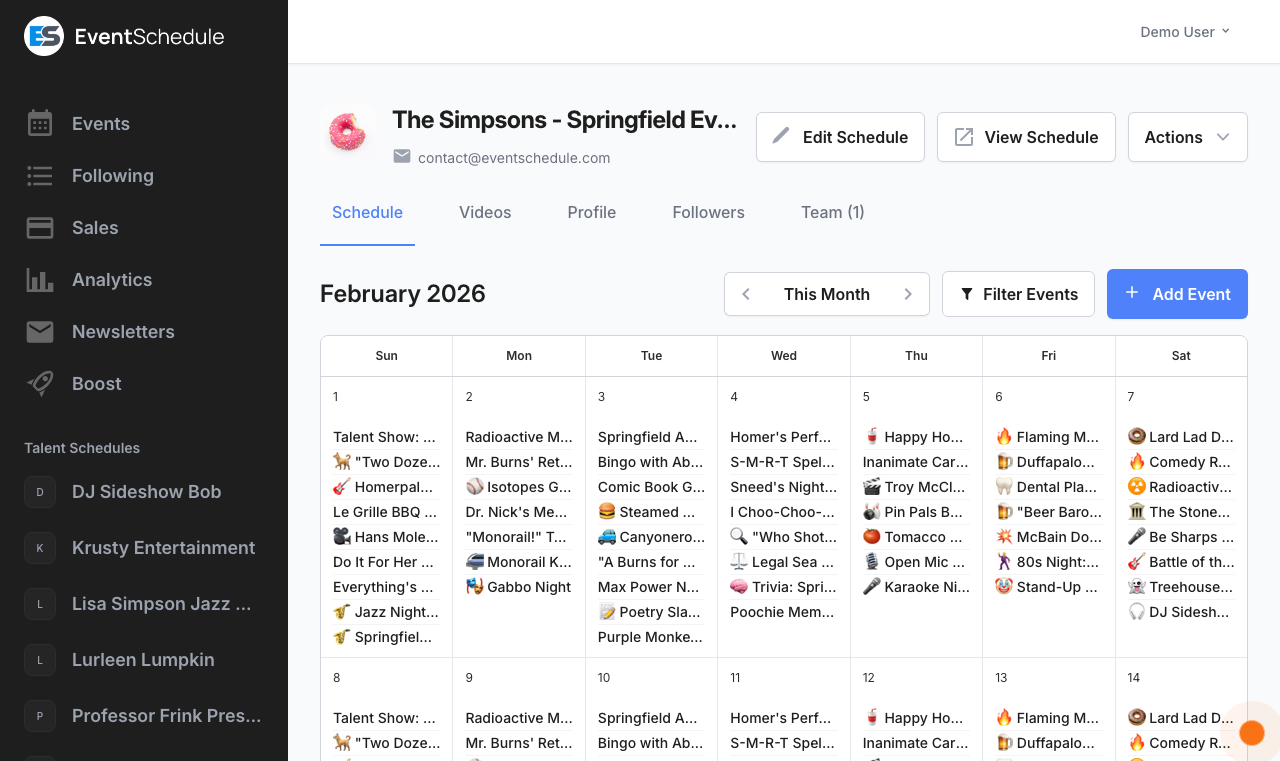
| Tab | What it covers | When you see it |
|---|---|---|
| Channel | Your events, a month at a time, plus anything without a date | Always |
| Templates | Saved event templates you can start a new event from | Owners and admins. Pro – Requires the Pro plan |
| Videos | Match YouTube videos to the talent on your upcoming events | Curator channels |
| Availability | Days you are not free to be booked | Talent channels. Saving needs Enterprise – Requires the Enterprise plan |
| Appointments | Bookable time slots and the bookings they produce | Always |
| Seating | Reusable seating plans for your room, used to sell reserved seats | Enterprise – Requires the Enterprise plan |
| Requests | Submitted events and bookings waiting for your decision | Only while something is pending |
| Followers | People who follow the channel or signed up by email, and your QR follow code | Always on eventschedule.com; on a selfhosted install, once someone has subscribed |
| Team | Who can get into the admin panel, and at what level | Always |
| Plan | Subscription, usage allowances, and billing | eventschedule.com only |
The Audit Log is not a tab. It opens from the Actions menu in the top right, which is also where you find importing, embedding, and deleting the channel.
Your access level changes what you seeChannels have three access levels: owner, admin, and viewer. Viewers get a read-only admin panel, cannot see ticket sales, and cannot open the channel settings page at all. Following a channel is not an access level and grants nothing in the admin panel. See Team.
Channel #
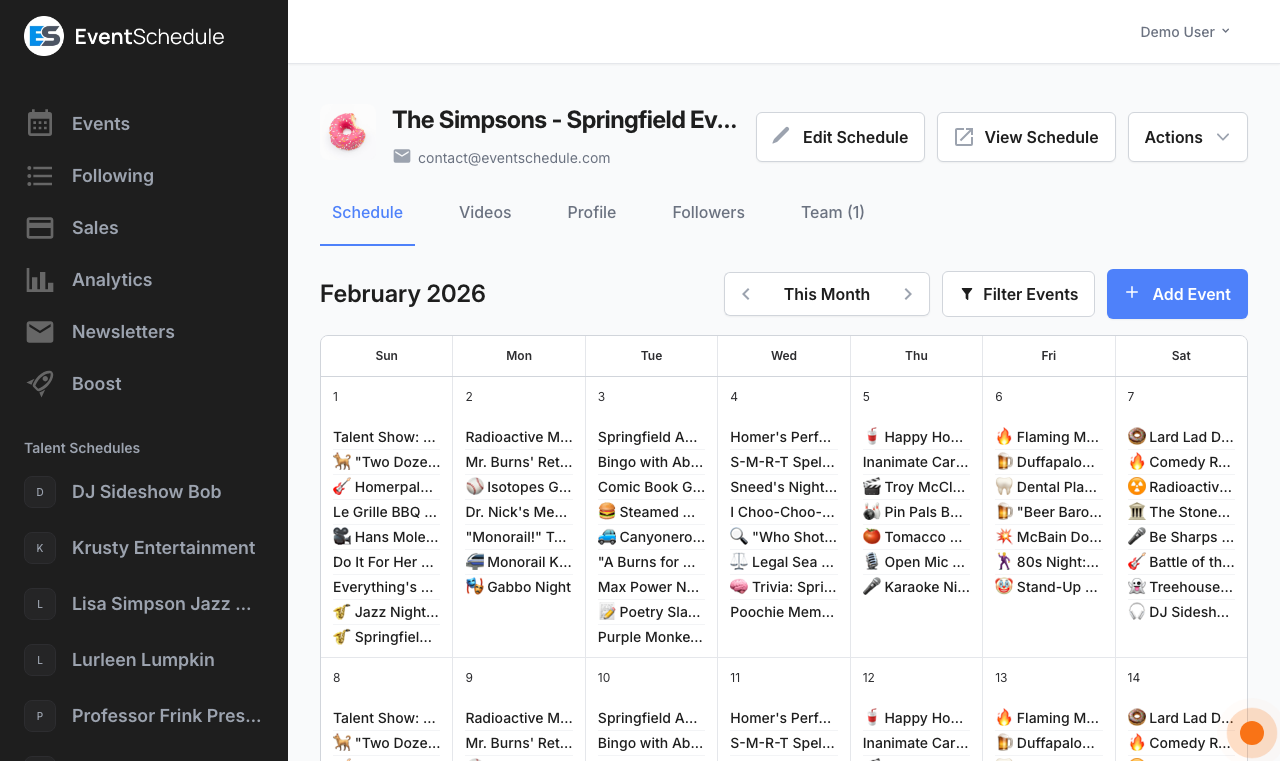
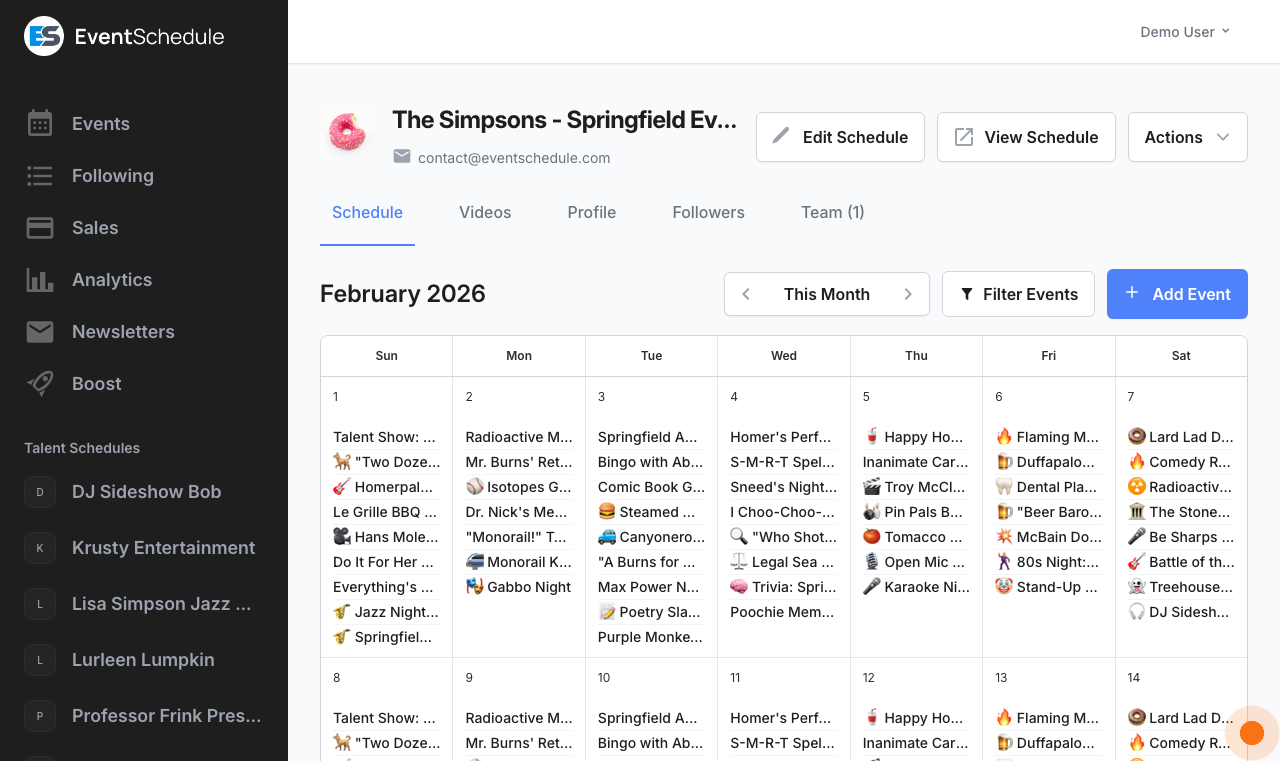
The Channel tab is the main view of your admin panel. It loads one month at a time, so moving between months fetches that month’s events.
- Use the arrow buttons to step a month back or forward, and This month to jump back to today
- Switch between the calendar and list views with the view toggle; your choice is remembered
- Filters narrow the view by sub-channel, category, venue, any custom field set to Show as Filter (Pro), and toggles for free entry and online events. Only the filters that apply to the events in view are offered. Because one month is loaded at a time, the button is always there even when this particular month has nothing to filter
- The search box at the top of the filters panel matches event names, short descriptions, venues, talent, categories and public custom field values. On a wide screen the calendar searches the month you are viewing; in the list, and on a phone, it searches your upcoming events
- While a filter or search is active, a row of filter chips above the calendar shows what is applied; remove one with its × or use Clear filters. Past events are left out of the list until the filters are cleared. Opening a sub-channel’s own page is not a filter, so it shows no chips
- A category or custom field filter is also a link: Copy link in the filters panel copies your channel’s public address with that filter applied, ready to share or turn into a QR code
- Click any event to open it, then Edit to change it
- Add Event creates a new event by hand. It appears once the channel’s email address is verified, and is hidden from viewers
- Use a Template sits next to it once you have at least one saved template (Pro)
- Events with no date at all appear in an Unscheduled section below the calendar on venue and talent channels, each with a Channel button that opens the event so you can give it a date, and a Decline button to drop it
For details on adding and editing events, see Creating Events.
Actions Dropdown #
The Actions dropdown sits at the top right of every tab and gathers the operations that act on the channel as a whole. On narrow screens it also carries Edit Channel and View Channel, which are separate buttons on desktop.
| Action | What it does | Shown to |
|---|---|---|
| Import Events | Opens AI Import to bring in events from a link, pasted text or a flyer image | Owners and admins |
| Scan Agenda | Reads a printed or photographed agenda and turns it into event parts | Owners and admins, on narrow screens. Enterprise – Requires the Enterprise plan |
| Sync Events | Runs a Google Calendar sync straight away instead of waiting for the next scheduled one | Owners and admins, once your Google account is connected and the channel has a Google Calendar linked |
| Events Graphic | Builds a shareable graphic of the month’s events | Everyone, including viewers |
| Embed Channel | Opens the embed dialog with the code to drop your calendar into another website | Everyone, including viewers |
| Audit Log | Opens the audit log for this channel | Owners and admins |
| Delete Channel | Permanently deletes the channel and everything on it, after a confirmation | The owner only |
Scan Agenda and Sync Events only appear when the site has an AI provider configured, and Scan Agenda is a narrow-screen shortcut: on a wide screen you reach the same tool from Import from Image in the Agenda section of the event form. If the channel still has gift cards with a balance left on them, the Delete Channel confirmation says so before you go ahead. It also warns you when the channel has a paid plan: deleting the channel cancels that plan immediately, and the rest of the billing period is not refunded.
Templates Pro – Requires the Pro plan #
Save any event as a reusable template, then create new events from it in seconds. This suits an event you run again and again on a different date each time. The tab is offered to owners and admins; viewers do not see it.
- Open an event and choose Save as Template from its Actions menu. The template captures the event’s details, tickets, agenda and participants.
- The date is deliberately left blank so you set it fresh each time. A recurring day-of-week pattern is kept.
- On the Templates tab, use Add Event on a template card to start a new event from it, the pencil icon to rename it, or the bin icon to delete it.
- On the Channel tab, Use a Template next to Add Event opens the same list without leaving the calendar.
The new event opens in the normal event form, prefilled, so nothing is committed until you save it. See Creating Events.
On the Free planThe Templates tab is still there, but instead of your templates it shows what the feature does and a link to upgrade. Templates you already saved are kept, and reappear if you move back to Pro.
Videos #
Curator channels onlyThe Videos tab helps you put a video on the page of every act you have booked. It lists the talent appearing on your upcoming accepted events who do not have a video yet, and searches YouTube for each one by name automatically as the page loads.
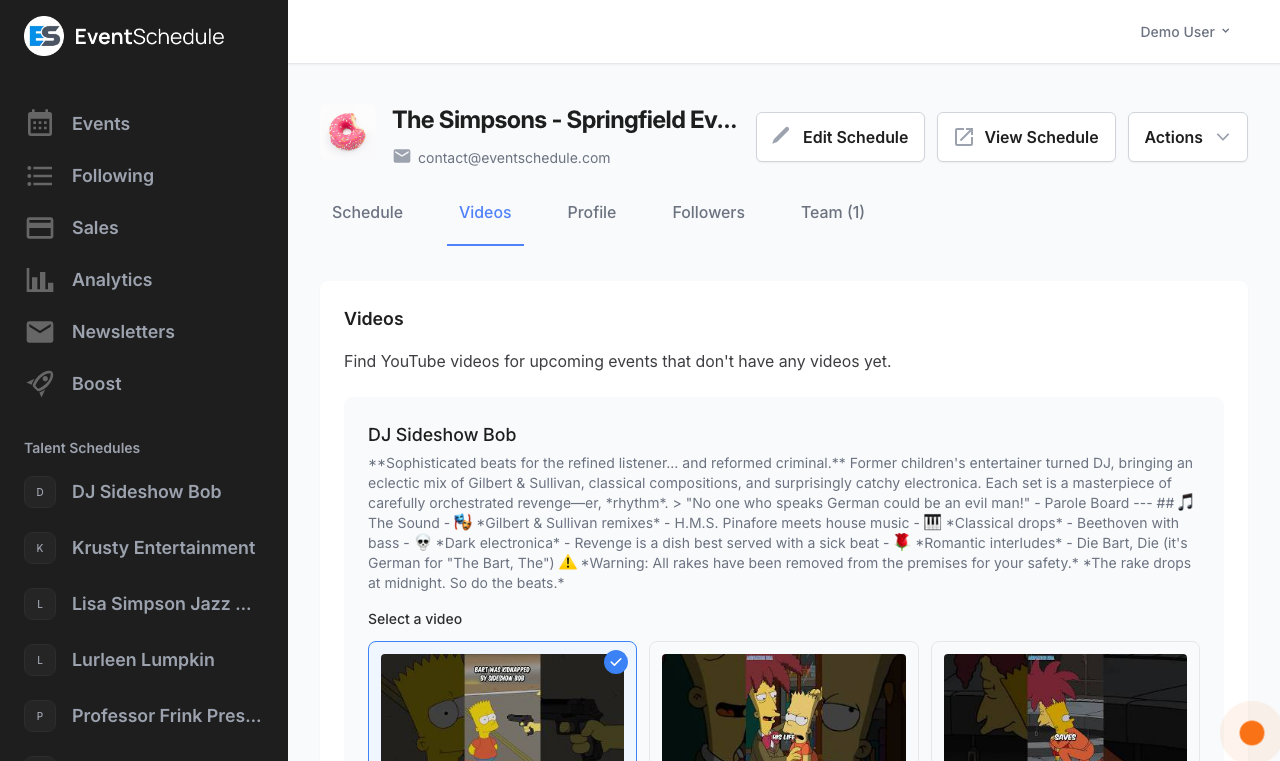
- Each act shows the event it is booked on and its date, and the event name opens that event’s page in a new tab, so you can check you have the right act before picking a video
- Each act gets up to six suggestions, showing the thumbnail, title, channel, view count and like count, with a Watch link that opens the video on YouTube
- Only videos their owner allows to be played on other websites are suggested, so a saved video will not turn into YouTube’s “Video unavailable” panel on your public pages
- Click the play button on a suggestion to watch it right there, in the same player your visitors get
- The closest match is preselected. Click another card to choose it instead, or click the selected card again to clear it
- Save Videos attaches your choice to that act’s channel, where it appears on their public page
- Skip takes the act off the list without attaching anything, so it stops coming back
- Either way the act disappears from the list, and once the list is empty the tab says so
If a video does stop working later, because its owner turned off embedding or deleted it, you do not have to come back here. Remove video appears under the video on your channel page and on the event page for anyone who can edit the channel, and takes just that one video away. A nightly check also removes saved videos that YouTube can no longer play.
NoteViewers can browse the suggestions and watch them, but cannot select, save or skip. The search needs the site to have a Google API key with the YouTube Data API enabled; without one the tab reports that no videos were found.
Availability #
Talent channels only Enterprise – Requires the Enterprise planThe Availability tab lets each team member mark specific dates as unavailable. It answers “can we book them that night” for the people who run the channel with you, and it is only on Talent channels.
Setting Availability #
- Click a date in the calendar to mark it unavailable. It gets a red overlay labelled Unavailable.
- Click the same date again to clear the marker.
- Click Save to store the month’s changes. The button stays disabled until you change something, so nothing is saved by accident.
TipUse the calendar navigation arrows to move between months and mark dates further in advance. Each month is saved as you go, so save before you move on.
How Team Members See It #
You edit only your own availability, but everyone’s shows up together on the Channel tab:
- Days on which someone is unavailable are highlighted on the Channel tab calendar
- The info icon on such a day lists which team members are unavailable
- Each team member can only edit their own dates
NoteAvailability is never shown publicly. It is visible only to signed-in members of the channel. Marking a day unavailable does not stop anything from being booked on it: it is a note to your team, not a lock. Saving requires the Enterprise plan; on a lower plan the Save button offers an upgrade instead.
Appointments Free – Available on the Free plan #
The Appointments tab is where you offer bookable time slots, Calendly-style. Create appointment types with their own duration, weekly hours and optional price, and guests book a time on your public booking page.
- The tab has two views: appointment types, where you set up what can be booked, and Bookings, filtered by upcoming, pending, past and cancelled
- A Your booking page panel gives you the link to share once a type is active
- The tab header counts bookings that are still waiting for approval, so you can see at a glance if something needs a decision
- Bookings are private, so they never appear on your public channel, and paid ones show up on your Sales page
For the full setup, see the Appointments guide.
Free plans get one appointment typeAppointment booking itself is free. On eventschedule.com a free channel can have one active appointment type; Pro removes the cap, and also adds paid bookings and the advanced scheduling rules. Selfhosted installs have no cap and no gate.
Not the same as AvailabilityAvailability marks whole days your team is not free to be booked for events, and is visible only to your team. Appointments publish specific time slots on a public booking page that anyone can book.
Requests #
The Requests tab holds everything waiting for your decision, and it only appears while something is actually pending. Once you have cleared the list the tab disappears again. The tab label carries the count, so you can see how many are waiting without opening it.
Two different things land here:
- Event requests. Anyone with your public request link can submit an event to your channel, unless you have turned Accept requests off. A date another channel adds you to lands here too when your channel reviews it first, which a Talent channel always does unless that channel is already on its approved list. Each card shows the submitting channel or venue with its picture, the date, the sub-channel it was filed under, and the answers to any questions you added to your request form.
- Appointment bookings, when the appointment type has Require approval before confirming turned on. These cards are badged with the appointment type and show the guest’s name, email, phone, chosen time, price and payment status, plus any note they left. A booking a guest has moved to a new time is badged as moved, so you can spot it in a long list.
Working through the list #
- View opens the public page for an event request so you can see the whole thing, and Edit opens it in the event form if you want to tidy it up before publishing.
- Accept publishes the event on your channel, or confirms the booking. The person who submitted it is emailed, and a guest who booked an appointment gets their confirmation and calendar invite. On eventschedule.com every email about a booking, to the guest or to you, needs the channel’s own email settings.
- Decline asks you to confirm, then removes it from your channel and emails the submitter. Declining a booking also cancels it and frees the slot, but it does not return a payment. If the booking was paid, the email telling you it was cancelled gives the amount and payment reference, so you can return the money in Stripe or your payment provider. To refund from EventWillow instead, use Refund Ticket on the Sales page before you decline: it is only offered while the sale is still paid.
- Accept All at the top of the list takes everything in one go, after a confirmation that names the count. There is no bulk decline: declining is one at a time, on purpose.
Who can act on requestsOnly owners and admins get the Accept, Decline and Accept All buttons. Viewers see the same cards, and can open a request, but cannot decide it. An appointment whose start time has already passed is refused rather than confirmed, and Accept All steps over it instead of failing.
Being told about them #
EventWillow emails owners and admins when new requests arrive. The setting is New event requests under Settings → Notifications, it is on unless you turn it off, and it is per person rather than per channel. Viewers are never notified. A team that works from a shared mailbox can add it as the channel’s shared notification address, which gets a copy of each request email. If the channel does not require approval there is nothing to notify about, and no email is sent.
To turn requests on, choose your request form, name channels whose submissions skip approval, and set your request terms, see Creating Channels: Requests. Talent channels get a shorter version of those settings, because a request to book a performer is always reviewed by hand.
Followers #
The Followers tab lists your audience. Three panels at the top count it: Get new-event emails is your confirmed email subscribers, Newsletter only is people who pressed Follow while signed in, and Can be emailed is the two added together. Below them come the two lists: email subscribers, then account followers. Nobody appears twice, because confirming a sign-up also sets up an account that follows your channel, and those people are listed under Email subscribers with an Account badge. Both lists are default recipients when you send a newsletter.
People join in two ways. Somebody signed in who presses Follow becomes an account follower. Somebody signed out gives their email and name, in the Stay up to date panel on your channel and event pages or in the dialog the Follow button opens for them, and becomes an email subscriber once they open the confirmation link.
Pressing Follow on its own does not sign anybody up for automatic email. Confirmed email subscribers are different: they asked to hear from you, so publishing sends them an automatic digest of the new public events your channel creates, at most one every few days. You can turn that off under Settings → Notifications.
- The table gives each follower’s name, email address, their own channel if they run one, and the date they followed you
- Sort by name, email or date by clicking the column heading, and page through longer lists at the bottom
- QR Code at the top right downloads a PNG ready to print on a poster or a flyer. Scanning it opens your public channel page, or your custom domain if you have one, scrolled to the sign-up form
- Embed Signup Form, beside the QR code, gives you the code to put the sign-up form on your own website. See Embedding a Signup Form
- Before anyone has joined, the tab shows Your follow link with a Copy Link button. It opens the same place as the QR code
- The subscriber table adds a status for each address: Confirmed, Awaiting confirmation, or Unsubscribed. Only confirmed addresses are ever emailed
- An Account badge beside a name means that person also has an account here, so the channel is on their Following page and they can manage it themselves
- A Website badge means the person signed up through the form embedded on your website
- Removing a subscriber removes them from both lists at once, so they stop receiving newsletters as well as the digest
Follower details stay privateNames and email addresses are visible only to the channel’s own members, here and on the newsletter pages. They never appear on your public channel, your embedded calendar, or your public stats. Anyone clicking Follow is told first that you will be able to see their name and email.
The QR code and the follow link are free on every plan. For more on growing your audience, see Sharing: Followers.
Team #
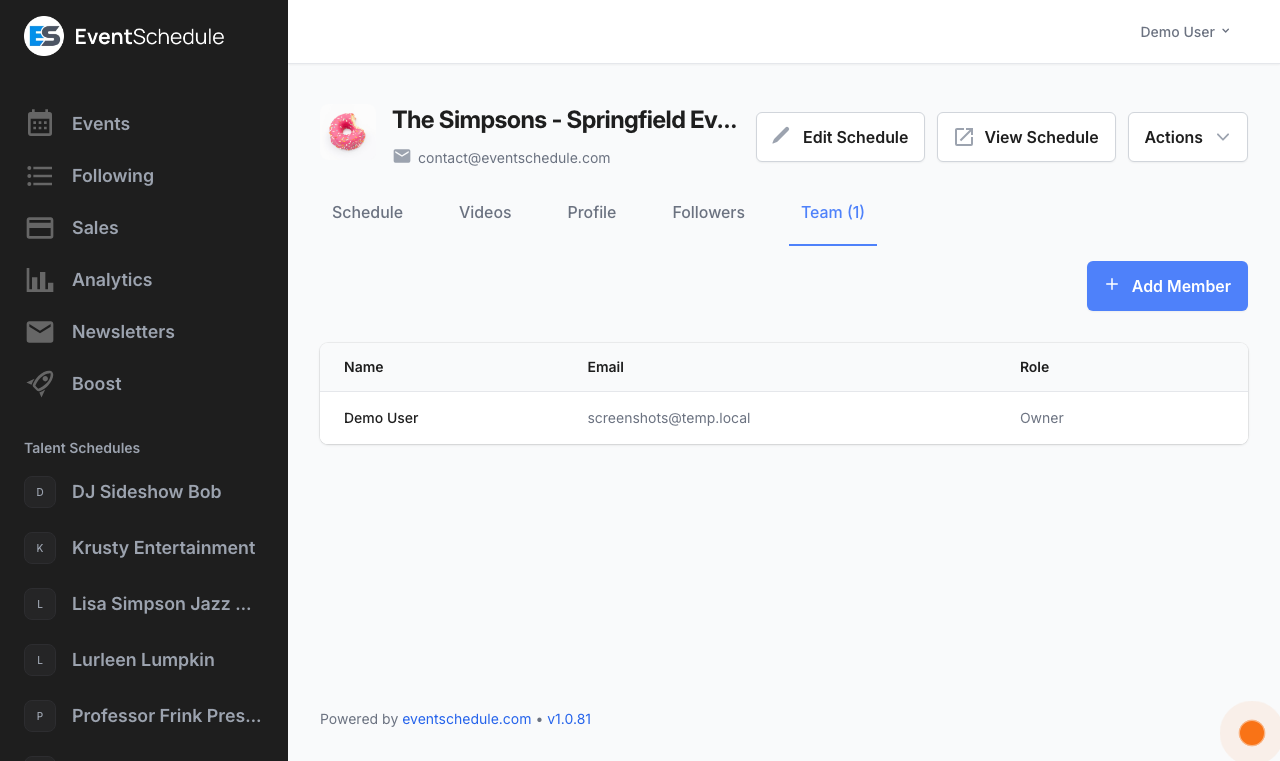
The Team tab lists everyone who can get into this channel’s admin panel and at what level. Every channel has exactly one owner: the person who created it.
Access Levels #
| Level | Can | Cannot |
|---|---|---|
| Owner | Everything an admin can, plus change a member’s level, remove members, manage the plan and billing, and delete the channel | Be removed or demoted |
| Admin | Run the channel day to day: add and edit events, accept and decline requests, edit the channel settings, sell tickets, see the channel’s sales, waitlist and check-in dashboard, refund a sale, scan tickets at the door, invite new members | Change anyone’s level, remove another member, or delete the channel |
| Viewer | Read the admin panel: browse the calendar, requests, followers, team and bookings, generate a graphic, grab the embed code, and scan tickets at the door | Add or change anything, act on requests, see ticket sales, the waitlist or the check-in dashboard, or open the channel settings page at all |
Sales, refunds, the waitlist and the check-in dashboard cover the events on your channel, with one exception: the team of a Curator channel does not see the sales of an event it only lists, because that money belongs to the channel that created the event.
Following is not an access level. Someone who follows your channel from its public page is a member of your audience, not of your team, and gets no admin panel access at all.
Managing Members #
- Click Add Member and give their name and email address. A phone number is optional, and the level defaults to Admin.
- They are emailed an invitation. If they have not accepted yet, the level column shows a Resend Invite button in place of a level, and, on eventschedule.com, a second SMS button when you gave a phone number and text messaging is configured.
- Once they have signed up, the owner can change their level between Admin and Viewer from the dropdown in that row. It saves as soon as you pick.
- Remove revokes access. Only the owner can remove someone else; anyone can remove themselves. The owner’s own row has no Remove button.
- Sort the list by name or email by clicking the column heading.
Team size by planOn the Free and Pro plans a channel has a single member: you. Adding anyone else needs the Enterprise plan, where the Add Member button becomes active. On eventschedule.com a team is capped at 5 members in total. Selfhosted installs count as Enterprise, so the button is available there without a subscription.
If the plan lapsesOn eventschedule.com, invited members can only open the admin panel while the channel is on Enterprise. If it drops to a lower plan they are turned away with a message asking the owner to upgrade, and the owner keeps full access on their own. Nobody is removed, so restoring Enterprise restores their access.
Transferring Ownership #
Ownership can be handed to another account: a venue changes hands, an organizer leaves, or you set a channel up for someone and want it to be theirs. It is available on every plan, and only the owner can start it. A channel that nobody owns yet changes hands a different way, by being claimed – see Pages Created for Others.
- On the Team tab click Transfer ownership and enter the new owner’s email address.
- On Enterprise and selfhosted installs you can turn off Remove me from this channel to stay on as an admin afterwards. Free and Pro channels hold a single member, so there you are always removed.
- They are emailed a link. Nothing moves yet: the request sits on the Team tab with Resend Invite and Cancel buttons, and expires after seven days.
- To accept, they sign in with the address you sent it to. The link on its own is not enough, and if they do not have an account yet they can create one with that address.
- As soon as they accept, the channel is theirs: every event, follower, image and setting comes with it.
What changes for the previous ownerTicket payments for this channel’s events start settling into the new owner’s payment account, so the new owner should check their payment settings before the next sale. The previous owner’s calendar sync for the channel is disconnected, and their events, followers and settings all move across. Events curated in from other channels are untouched: those still belong to whoever created them.
Billing on eventschedule.comThe previous owner is never charged for the channel again: their subscription is cancelled at the end of the billing period already paid for and their saved card is removed. The channel keeps its plan until that period ends. Before then the new owner adds their own billing details to keep it, otherwise the channel moves to the free plan. Selfhosted installs have no billing step at all.
Plan #
The Plan tab shows this channel’s subscription and what you have used of it. Plans are per channel, so each channel you run has its own.
What it shows #
- Current plan (Free, Pro or Enterprise) and the billing term, monthly or yearly
- Status: Trial, Active, Cancelled, Past due or Inactive, with the date your trial ends, your access ends, or the subscription renews
- The payment method on file, with a prompt to add one if there is none
- Three usage meters: ticket sales this month, newsletter emails this month, and photo storage, each showing what is used, what is left, and when it resets
The newsletter meter counts recipientsEach recipient counts as one email, so sending a single newsletter to 100 followers uses 100 of the allowance. Free channels get 10 a month, Pro 100, Enterprise 1,000. Selfhosted installs are unlimited.
What you can do #
- Upgrade to Pro or Enterprise. A free trial is offered alongside the upgrade button if this channel has not used one
- See how long a selling trial has left, if one is running. It is not a plan, so the plan still reads Free
- Manage subscription opens the Stripe billing portal for invoices and card details
- Switch between monthly and yearly billing, with the price for each shown on the button
- Cancel, which leaves your paid features running until the end of the period, and Resume during that grace period. Cancelling asks why you are leaving; answering is optional
- Change to the free plan outright
These controls are the channel owner’s; other team members see the plan but not the buttons. The tab also links to the referral program, which can offset what you pay.
Ads on free channels #
Some EventWillow sites cover their costs by showing ads at the bottom of free channels’ public pages. Where that is switched on, upgrading to Pro removes them, in the same way it removes the “Powered by EventWillow” credit. Paid channels never carry ads.
Even on a site that does show them, ads stay off your embedded calendars, your shareable event graphics, password-protected pages, custom domains, any event page that is actively selling tickets, and any page you or your team members are viewing while signed in.
You do not have to upgrade to be rid of them. Do not show other channels’ promotions under Settings → Advanced turns off ads as well as promotions, and it is free on every plan.
Not enabled on eventschedule.comThis is a per-site choice made by whoever runs the EventWillow installation you are on, and it is off unless they turn it on. eventschedule.com does not show ads on free channels, so if that is where your channel lives, none of this applies to you.
Audit Log #
The Audit Log records the significant actions taken on your channel so you can trace who did what and when. It is most useful on a shared channel, and after the fact when something has changed and nobody remembers changing it.
Open it from Actions → Audit Log at the top right of the admin panel. It is available to owners and admins; viewers do not see the menu entry.
What is recorded #
| Category | Entries |
|---|---|
| Event | Created, updated, deleted, published, accepted, declined |
| Sale | Checkout, paid, cancelled, refunded, checked in, expired |
| Channel | Created, updated, deleted, team member added, team member removed |
| Subscription | Started, changed, cancelled, resumed |
| Boost | Campaign created, paused, resumed, cancelled |
Reading and filtering it #
- Each row gives the time, the person who did it (or “System” for anything automatic), the action as a coloured label, and a short detail
- Sort by any of those four columns by clicking its heading
- Filter by category, by a from and to date, and by a free-text search across the action and its details
- Clear resets the filters, and longer logs are paged 50 entries at a time
The log is scoped to this channel: its own settings and subscription changes, its events, sales on those events, and its boost campaigns. Sign-ins and account-level changes are not shown here.
See Also #
- Creating Channels – Set up and configure your channel
- Creating Events – Add and edit events on your channel
- Appointments – Offer bookable time slots on a public booking page
- Newsletters – Email your followers about what is coming up
- Sharing Your Channel – Share your channel and grow your audience
Adapted from the Event Schedule user guide. Upstream screenshots are included for reference. Original guide