Your Channel URL #
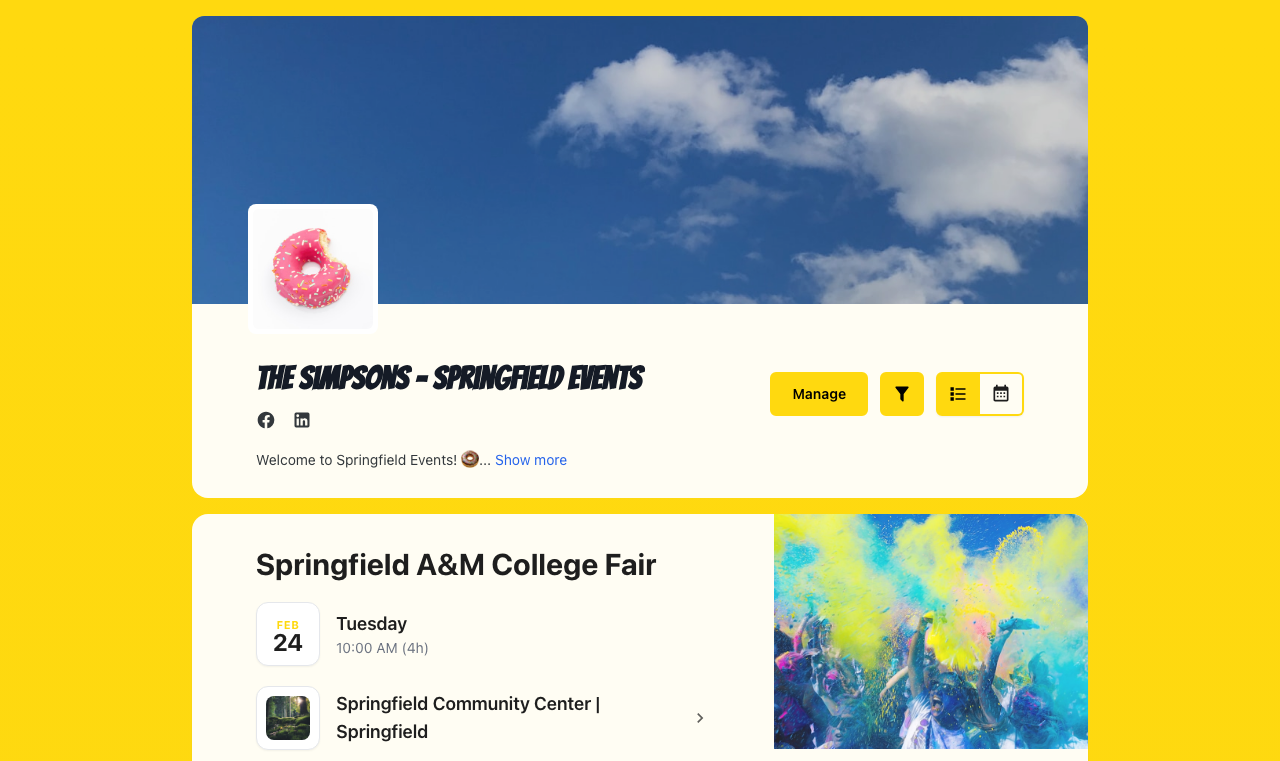
Every channel gets a unique, shareable URL. This is the primary way people will find and view your events.
Your channel URL format:
https://your-schedule-name.eventwillow.com
Share this link anywhere:
- Your website or bio
- Social media profiles
- Email signatures
- Printed materials
Every event also has its own permanent URL underneath the channel URL, and every sub-channel has one too, so you can point people at one strand of your programme instead of the whole calendar.
Enterprise Feature: Custom Domain
With an Enterprise plan, you can use your own domain (e.g.
events.yourdomain.com) for a more professional look. Configure this in Channel Settings. Once a custom domain is live it becomes the canonical address, so it is the one your QR code and your feed URLs point at.
Embedding on Your Website #
Add your channel directly to your website with an iframe. It loads live from EventWillow, so your events update on your site without any extra work. Embedding the calendar is available on every plan, including Free.
See our embed calendar feature page for a full overview and demo.
Getting the Embed Code #
- Open your channel in the admin portal
- Open the Actions menu and choose Embed Channel
- Leave Widget on Calendar. The other option, Signup form, is covered in Embedding a Signup Form below
- Pick a Theme. Match the visitor’s device follows each visitor’s light or dark setting; choose Light or Dark to match your website instead
- Pick a Layout. Leave it on Channel default to follow your channel’s own Default Layout, or choose Calendar or List to pin this one frame
- Check the Preview, which reloads each time you change the widget, theme or layout
- Copy the Iframe Code with the button beside the field, or copy the Embed URL if you would rather write the tag yourself
- Paste it into your website where you want the channel to appear
The theme and layout pickers only rewrite the code you copy. They never change your channel’s own Default Layout setting.
Free Plans Get a Credit Line
On a Free hosted plan the copied snippet includes a small “Powered by EventWillow” line underneath the iframe. It sits outside the frame, so you can see exactly what you are pasting. Removing branding is a Pro feature. Selfhosted installs never add the line.
Embed Tickets Too
An individual event URL can also be embedded as a purchase or RSVP form. The RSVP form embed is free on every plan; the ticket purchase widget is a Pro feature. See the Embed Widget section in the Selling Tickets guide.
URL Parameters #
Add these to the embed URL to change how the frame renders. They go after ?embed=true, separated by &.
| Parameter | Description |
|---|---|
embed=true | Required. Renders the channel on its own, with no header, footer or banner, and is the only URL another site is allowed to frame. embed=1 works too |
layout=calendarlayout=list | Force the month calendar or the list, whatever your channel’s Default Layout is set to. Leave it off and the embed follows that setting |
schedule=slug | Show a single sub-channel instead of everything. The sub-channel’s own page URL (your channel URL followed by the slug) does the same thing and can be embedded directly |
category=id | Show a single event category. The value is the category’s numeric id: filter your channel page by the category and it appears in the address bar, ready to copy |
custom_N=value | Show only the events with one value in a custom field set to Show as Filter, for example custom_1=room+a. N is the number shown next to the field in your settings, and matching ignores capital letters and extra spaces. Custom fields are a Pro feature |
form=subscribe | Show the email signup form instead of the calendar. See Embedding a Signup Form |
dark=truedark=false | Force dark or light mode. Left off, the frame uses the theme the visitor last chose on EventWillow, and their system setting if they have never chosen one |
lang=xx | Switch the frame to your channel’s second language, the one set by Offer a second language to visitors under Details. Any other language code is dropped and the frame falls back to your channel’s own language |
month=3 & year=2027 | Open the frame on a specific month instead of the current one. This moves the month calendar; the list always starts from today |
The frame’s width and height are plain iframe attributes, not parameters: width="100%" lets it fill whatever column you drop it into, and you choose the height. Nothing measures the calendar and resizes the frame for you. The signup form is the exception, below.
Link to One Room
A filtered channel page is a link you can share. Filter your channel by a custom field value, such as a room, and the address bar holds the whole view, for example
https://your-schedule-name.eventwillow.com?custom_1=room+a. The Copy link button in the filters panel copies it for you. Turn it into a QR code for the door of the room and anyone passing can see what is on there next. Add&embed=trueto show the same view in a frame.
Two Layouts on One Page #
Because the layout is set per URL, you can embed the same channel twice on the same page and give each frame its own layout:
One calendar, one list
<iframe src="https://your-schedule-name.eventwillow.com?embed=true&layout=calendar"
        width="100%" height="800" frameborder="0" style="border: none;"></iframe>

<iframe src="https://your-schedule-name.eventwillow.com?embed=true&layout=list"
        width="100%" height="800" frameborder="0" style="border: none;"></iframe>
Give the Calendar Room
The month calendar needs about 768px of frame width to render as a grid. Below that it falls back to a day-by-day agenda, which looks much like the list. If you are putting two frames side by side in narrow columns, expect both to show the agenda.
Which Layout Wins
?layout=always wins. Without it, an embed uses your channel’s Default Layout. A visitor who switches between calendar and list on your own channel page only changes it for themselves there, and never affects your embeds.
What Travels Into the Frame #
- Your events, live. The frame loads from your channel on every page view, so a date you move this afternoon is already right on your site. You never re-paste the tag.
- Your look. Background, colour scheme and font come from your Style settings. Custom CSS, on Pro, applies inside the frame too.
- Nothing else. No header, no footer, no banner, no language switcher, which is why the language is set in the URL instead.
- No ads, ever. A Free channel’s own public pages can carry ads. An embed never does.
- No search-engine competition. The embed URL is served
noindex, nofollow, so the page that ranks is yours, not the frame inside it.
Embedding a Signup Form #
You can also put your email sign-up form on your own website, so visitors can ask to hear about your new events without leaving it. People who sign up there join the same list as those who sign up on your channel page. Like the calendar embed, it is free on every plan.
- Open the Followers tab and click Embed Signup Form, or open Actions → Embed Channel and set Widget to Signup form
- Pick a Theme that suits your website, and check the preview
- Copy the code and paste it into your website where you want the form to appear
- It sizes itself. The code is an iframe plus one short script that lets the frame fit the form, the error message and the “check your email” note. If your website builder removes scripts, the frame keeps a fixed height of 520 pixels, which fits the form even on a phone
- It sits on your page. The form is a card on a clear background, in your channel’s accent colour, rather than on your channel’s background image
- It asks for confirmation. Everyone who signs up gets an email with a confirmation link, exactly as on your channel page, and is emailed nothing else until they open it
- You can see it working. People who signed up through the embedded form carry a Website badge on the Followers tab
- It shows even with the panel off. Turning off Show Sign-Up Panel hides the panel on your channel page, not the form you embedded
lang=anddark=work here too, as in the table above
Keep New-Event Emails On
What subscribers get automatically is the digest of your new public events, sent at most once every few days. It is controlled by Email subscribers about new events under Settings → Notifications. With it off, people can still sign up but will only hear from you when you send a newsletter, so the embed dialog warns you. On eventschedule.com, digests to more than 50 subscribers also need a verified phone number or your own SMTP settings, and the dialog warns about that too.
Building Followers #
Your audience is everyone who asked to hear from you: people who follow your channel with an account, and people who signed up with their name and email address. Together they are who your newsletters go to, and the list builds up over time.
Following and Subscribing Are Different Lists
Somebody who leaves their name and email address on your page and confirms it is a subscriber, and subscribers are sent a digest automatically when you publish new public events, batched and no more often than once every few days. Somebody signed in who presses Follow is an account follower, and pressing Follow on its own reaches them only when you write and send a newsletter. Confirming a sign-up does both: it starts the digest and sets up an account that follows your channel, so they are listed once, under Email subscribers, with an Account badge. If someone wants your events on their own calendar with no email at all, point them at the calendar feed instead.
How Following Works #
The Follow button on your channel page, and beside each act on an event page that runs its own channel, does one of two things:
- Signed in: a short dialog tells them the channel will be able to see their name and email, and they can tick Don’t ask me again when I follow other channels. Your channel then appears on their Following page, where they can copy your iCal or RSS feed, sync the channel into their own Google Calendar, or unfollow at any time
- Signed out: the same dialog asks for their email and name instead, and works exactly like the sign-up panel below. Nobody is sent away to create an account first
The Follow button is part of the hosted version at eventschedule.com. On a selfhosted install, the sign-up panel is how people join.
Email Sign-Ups #
Signed-out visitors see a Stay up to date panel on your channel page and near the foot of each event page, though never inside the calendar embed. To put it on your own website, embed the signup form. It asks for their email and name, and its button reads Keep me posted unless you have relabelled it. The panel is on unless you turn off Show Sign-Up Panel under Settings → Advanced. With it off, a link made to open the form, like the QR code, still shows it.
- They are emailed a confirmation link, and join your list only once they open it. Until then the Followers tab shows them as Awaiting confirmation
- Confirming also sets up an account for them that follows your channel. The page they land on offers Set password and sign in, and they are on the list whether or not they finish it
- The panel tells them to expect at most one email every few days, only when there is something new. That is the automatic digest of the new public events you publish
- A tick box on the ticket and RSVP forms adds a buyer to your subscribers without a confirmation email, and does not set up an account for them by itself
- Under the form, Subscribe to all events from your channel offers the calendar feed to anyone who would rather not give an address
For the details of the checkout opt-in and the digest, see Email Subscribers.
Managing Followers #
Open the Followers tab in the admin portal. The tab label carries the running total, so you can see how big your audience is without opening it. Inside you get:
- Three panels counting your audience: Can be emailed, Get new-event emails and Newsletter only
- Your email subscribers, each with a status, an Account badge on those who have an account, and a Website badge on those who signed up through your embedded signup form
- A table of account followers: name, email, their own channel if they run one, and the date they followed you
- Sortable columns, newest first by default, and paging once the list grows
- An Embed Signup Form button, covered in Embedding a Signup Form
- A QR Code button, covered in QR Codes below
Everything on the tab is covered in Managing Channels: Followers.
Send newsletters to your followers to keep them engaged and promote upcoming events. Newsletters are available on every plan, and the monthly allowance counts recipients rather than sends: a newsletter to 100 followers uses 100 of the allowance.
Privacy
Followers and subscribers are both told, before they join, that the channel will see the name and email they give. You and your team see them on the Followers tab and the newsletter pages; they never appear on your public pages, your embeds or your public stats, and EventWillow never sells or shares them.
Calendar Subscriptions #
Let your audience subscribe to your events in their calendar app or feed reader. A subscribed calendar re-reads the feed on its own, so a date you move reaches it with nobody doing anything, unlike the one-off file Add to Calendar hands over. Both feeds are public, need no account or email address, and are available on every plan.
Finding Your Feed URLs #
Your guests are offered the iCal feed on your own pages, with nothing for you to set up:
- On an event page, the Add to Calendar menu ends with Subscribe to all events from your channel. The menu is there, on a phone as well as a computer, whenever the event is not selling tickets, taking registrations or sending buyers to an outside ticket link
- The Stay up to date sign-up panel, shown to signed-out visitors on your channel page and your event pages, ends with the same link and the line “Adds a live calendar that updates itself when dates change.”
- Your followers can use Copy iCal Feed and Copy RSS Feed on their own Following page
To copy the addresses yourself, edit your channel in the admin portal and open Integrations → Advanced. The iCal Feed and RSS Feed fields each have a copy button.
iCal Feed
Works with Google Calendar, Apple Calendar, Outlook, and any calendar app that supports subscribing to a URL.
https://your-schedule-name.eventwillow.com/feed/ical
RSS Feed
For readers and aggregators that support RSS. Capped at 50 items, and a repeating event contributes only its next occurrence.
https://your-schedule-name.eventwillow.com/feed/rss
Add to Calendar Buttons
Each event page has an Add to Calendar button offering Google Calendar, Apple Calendar (which downloads an .ics file) and Microsoft Outlook. Each of those copies one event across once and never updates. The rows below them are the ones that keep someone up to date: Subscribe to all events from your channel is the iCal feed above, and once you switch on the “Notify me” card, Tell me when tickets go on sale puts an email address on the interest list of a public event that has not happened yet.
What the Feeds Contain #
- Upcoming events only. An event that runs 24 hours or longer stays in the feed until it has actually ended
- Repeating events are expanded into individual dated entries for the next 90 days, so a weekly night shows up as a run of entries rather than one
- Only events accepted onto your channel appear. Drafts, internal and unlisted events, cancelled events and password-protected events are all left out, so an event you cancel drops out of the feed
- Each entry carries the event title, description, venue address and a link back to the event page
- Start and end times are exported as absolute instants, so every subscriber’s calendar app shows them in that subscriber’s own local time
Refresh Timing
Subscribed calendars pick up your changes on their own, with no action from your subscribers. The feed itself is cached for an hour, and calendar apps then refresh on their own channel, which for Google Calendar can be several hours. Do not expect an edit to reach a subscriber’s calendar within a minute or two.
QR Codes #
Generate a QR code for your channel to use in printed materials, posters, or at your venue. It is available on every plan, including Free.
- Open the Followers tab in the admin portal
- Click QR Code. The image downloads straight away as
qr-code.png, a PNG about 300 pixels square with a quiet margin already around it - Use it on flyers, posters, table tents, or anywhere else
When scanned, the QR code opens your channel with the sign-up form ready: for anyone not signed in, the page scrolls straight to the Stay up to date panel, so they can sign up on the spot. That works even if you have turned the panel off for everyone else. Until your first follower or subscriber arrives, the Followers tab also shows Your follow link, which opens the same place. If you have an Enterprise custom domain set up, both point at that domain rather than the eventschedule.com address.
A Different QR Code from Ticket Check-In
This code points at your channel and is for the public. Tickets carry their own QR codes on every plan, free registrations included, and the door scanner that admits people is free too. Selling a ticket that carries a price is a Pro feature, and so is the live check-in dashboard with its running count and per-ticket-type breakdown. See Check-In in the Selling Tickets guide.
Embed Troubleshooting #
Common issues when embedding your channel and how to fix them.
The frame is empty or the browser refuses to load it #
Almost always a missing ?embed=true. Every other EventWillow URL is served with framing switched off, so a plain channel link inside an iframe is refused by the browser. Copy the Embed URL out of the Embed Channel dialog rather than out of your address bar. Privacy extensions that block third-party frames are the other, rarer cause; test in a private window.
Embed appears too small or cut off
The embed iframe needs explicit height. Set a minimum height of 600px for comfortable viewing. Example: height="800" or style="height: 800px;"
Scrollbars appear on the embed
Increase the height of your iframe. The content may be taller than the container. For channels with many events, try height="1000" or higher.
Embed doesn’t resize on mobile
Set the width to 100% and wrap the iframe in a responsive container. Example: width="100%" and put it inside a <div style="max-width: 100%;">
Embed shows the wrong layout
Add &layout=calendar or &layout=list to the embed URL to pin it, instead of relying on your channel’s Default Layout. Remember that a frame narrower than about 768px shows the agenda even when the calendar is pinned.
Embed shows the wrong theme
Add &dark=true to the embed URL to force dark mode. See URL Parameters.
Embed shows the wrong language
&lang= only accepts your channel’s second language. Any other code is dropped and the frame falls back to your channel’s own language. Turn on Offer a second language to visitors under Details first.
An event is missing from the embed
The frame shows the same events as your public channel page, so a draft, an unlisted event, or one still awaiting your acceptance will not appear. Check the event on your channel page first; if it is missing there too, the problem is the event, not the embed.
Responsive Embed Code
<div style="position: relative; padding-bottom: 75%; height: 0; overflow: hidden;">
<iframe src="https://your-schedule-name.eventwillow.com?embed=true"
style="position: absolute; top: 0; left: 0; width: 100%; height: 100%;"
frameborder="0"></iframe>
</div>
See Also #
- Event Graphics – Generate shareable images for social media
- Creating Events – Add events to your channel
- Channel Styling – Customize your channel’s look before sharing
- Analytics – Track how sharing drives views and engagement
- Newsletters – Send newsletters to engage your followers
- Selling Tickets – Sell tickets for your events
- Embed Widget – Embed a ticket form on your website
Adapted from the Event Schedule user guide. Upstream screenshots are included for reference. Original guide
Social Media Sharing #
Share your channel and individual events on social media to reach more people.
Sharing Your Channel #
Share your channel URL on any platform. EventWillow builds the preview card for you from what is already on the channel:
In search results and browser tabs, the page title also says “Upcoming Events” while you have some, and a venue’s adds its town, as long as they fit.
Sharing Individual Events #
Each event has its own URL. Its preview card uses the event name as the title. The image is the event flyer. Without one it is a profile image the event page itself shows: the first performer’s that has one, else the venue’s, else that of the channel whose page it is, whichever channel created the event. A deleted channel, or one that declined the event, is passed over, and if that leaves none of those photos the card has no image. The description is the event’s short description, joined to its full description when the short one is under 50 characters, or else the event name, followed by the date and the venue while there is room. A recurring event’s own link stands for every date, so it leaves the date out. In search results and browser tabs, the page title adds the venue or town to the event name while they fit, and the date too on a one-off event.
Event Graphics #
Use the Event Graphics feature to generate shareable images showing multiple upcoming events, ready for a weekly social media post. Open it from Actions → Events Graphic in the admin portal. Generating graphics is free on every plan; having AI write the text that goes with them, and emailing graphics on a channel, are Enterprise features.